
How to Speed Up a Slow Laptop (2026 Guide)
A slow laptop can feel frustrating, especially when simple tasks start taking longer than they should. One day everything works fine, and the next your laptop takes forever to boot, apps freeze, and even browsing feels sluggish. Usually, the slowdown doesn’t come from one big issue. It builds up over time. Too many background apps, low storage space, startup programs, temporary files, and older hardware can all reduce performance. The good part is that many of these problems are fixable. Before trying random solutions, it helps to understand what’s causing the lag so you can improve performance the right way.
Perform a Quick Performance Check on Your PC
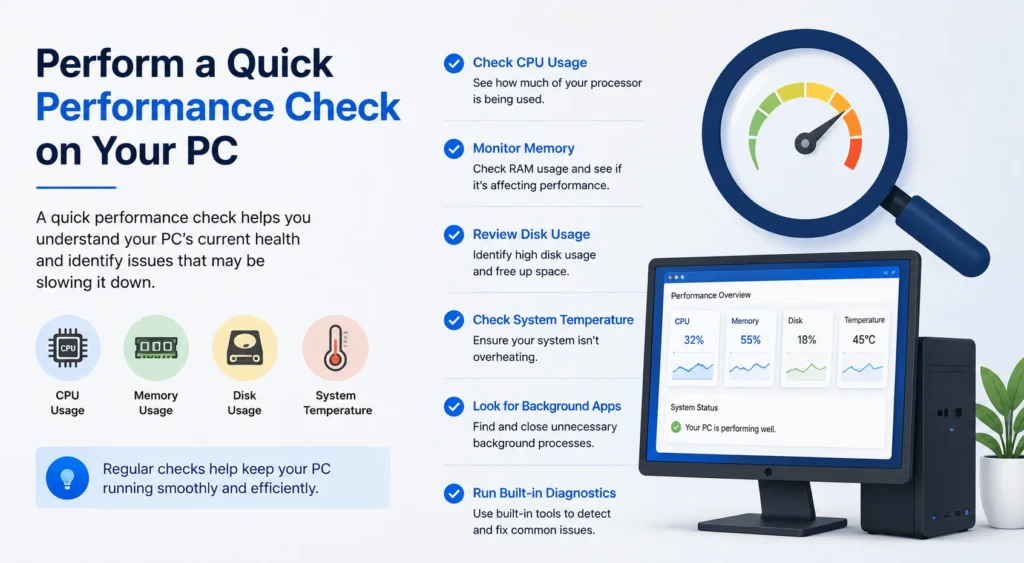
Before changing settings or deleting files, take a quick look at how your laptop is performing. This helps you spot the issue instead of guessing. Sometimes the problem is high memory usage. Other times, it’s storage running low or an app using too much CPU in the background. A quick performance check gives you a clear starting point. It also saves time because you’ll know where to focus first. Most laptops already have built-in tools that make this easy. In just a few minutes, you can understand what’s slowing your system down and choose the best fix.
💚 You might also like: How to Become a Web Developer in 2026 | Complete Guide
Check CPU, RAM, and Disk Usage
Open Task Manager and review CPU, memory, and disk usage. If one of them stays unusually high even when you’re not doing much, that’s often where the slowdown is coming from. A laptop with full memory or heavy disk usage will usually feel slow during everyday tasks like browsing, typing, or opening programs.
Identify the High-Usage Apps
Look through the list of running apps and check which ones are using the most resources. Some programs continue running quietly in the background even after you stop using them. Closing heavy apps that you don’t need right now can instantly free up memory and improve responsiveness.
Restart and Clear Background Processes
Restarting your laptop is one of the simplest ways to improve speed, and it often works better than people expect. If your laptop stays on for long periods, background processes continue building up and using system memory. Apps may stay active without you noticing, and temporary processes can keep running even after a program is closed. Restarting clears that load and gives your system a fresh start. It closes hidden tasks, refreshes memory, and can make your laptop feel quicker right away. If your laptop suddenly feels slow for no clear reason, this is always a smart place to begin.
Optimize the Startup Programs
If your laptop feels slow the moment you turn it on, startup programs are often the reason. Many apps are set to launch automatically when your laptop boots. Over time, that list gets longer without most people noticing. Music apps, chat apps, cloud storage tools, update services, and software launchers all compete for system resources in the background. That can delay startup and make your desktop feel slow for several minutes after login. Turning off unnecessary startup apps reduces that load and helps your laptop start faster while keeping more memory available for the tasks you actually care about.
Disable Unnecessary Startup Apps
Go to your startup settings and review which apps open automatically when your laptop starts. Disable anything you don’t need right away. Keep essential apps on, but turn off tools you only use occasionally. This small change can noticeably improve startup speed and overall performance.
Clean the Disk Space
Low storage space can slow your laptop down more than most people realise. When your drive is nearly full, Windows has less room to manage temporary data, updates, and background tasks efficiently. That often leads to slower app loading times, lag while multitasking, and delayed system response. Many laptops collect unnecessary files over time without the user noticing. Downloads, duplicate photos, cached data, and temporary files quietly consume valuable storage. Cleaning up your drive not only creates extra space but also helps your laptop run more smoothly. Even removing a few gigabytes of junk can improve overall responsiveness noticeably.
Remove Temporary Files
Temporary files are created by apps, browsers, and Windows processes every day. Most of them are no longer useful after a short time, but they continue taking up storage space. Deleting these files helps free up space and can improve system responsiveness, especially on laptops with limited storage capacity or older hard drives.
Delete Large Unused Files
Old videos, large downloads, duplicate folders, and unused installers often take up more space than expected. Check your storage and delete any files you don’t need anymore. Moving important files to cloud storage or an external drive can also help reduce clutter and improve laptop performance over time.
Uninstall Unused Software
Most laptops contain programs that are rarely used but still consume storage and system resources. Some apps continue running background services even when you never open them. Over time, these unnecessary programs can slow startup speed, reduce available memory, and affect overall system performance. Games, trial software, editing tools, and old utilities are common examples. Removing software you no longer use helps free storage space and reduces background activity. It also makes your system cleaner and easier to manage. If your laptop feels crowded or slow, uninstalling unused applications is one of the easiest ways to improve performance.
Update Windows and Drivers
Outdated software can create performance problems without obvious warning signs. System updates often include improvements for speed, security, compatibility, and overall stability. Drivers are equally important because they help your hardware communicate properly with the operating system. If graphics, storage, or chipset drivers become outdated, your laptop may feel slower or less responsive during everyday tasks. Keeping everything updated helps your laptop run more efficiently and reduces random issues like freezing, crashing, or lag. It also improves compatibility with newer apps and features. Regular updates may seem small, but they play a major role in maintaining smooth long-term performance.
Upgrade Hardware for Better Performance
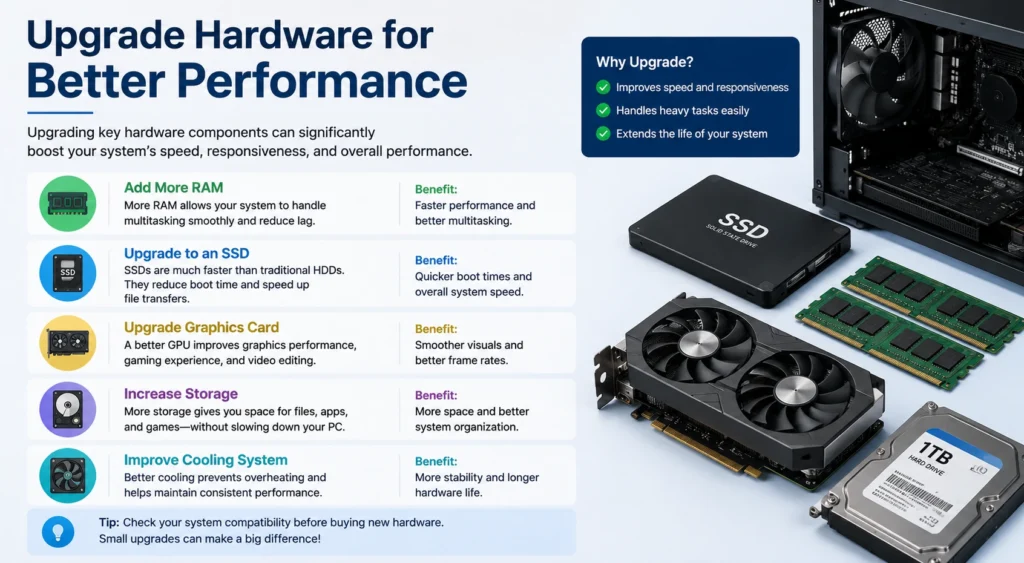
If software fixes have helped, but your laptop still feels slow, hardware may be the limiting factor. This is especially common with older laptops that struggle with modern apps, large files, or multitasking. Upgrading a key component can dramatically improve speed without needing a full replacement. For many users, changing storage or increasing memory makes the biggest difference. Apps open faster, the system feels more responsive, and everyday work becomes smoother. The best part is that some upgrades are surprisingly affordable compared to buying a new device. If your laptop is several years old, this step can be worth considering.
💚 You might also like: How to Study Effectively at Home in (2026) Smart Tips That Work
Upgrade from HDD to SSD
Switching from a hard drive to an SSD is often the biggest performance upgrade a laptop can get. An SSD loads Windows faster, opens apps quicker, and reduces waiting time across almost everything you do. Even older laptops often feel dramatically faster after moving to solid-state storage.
Add More RAM
If your laptop slows down while multitasking, adding RAM can help. More memory gives your system extra room to run multiple apps without freezing or lagging. It’s especially useful if you regularly keep many browser tabs open or work with heavy software.
Fix Overheating Issues
Heat can quietly reduce laptop performance even when everything else seems fine. When a laptop gets too hot, the system automatically slows down parts of the processor to protect internal components. This often feels like lag, freezing, delayed response, or poor performance during simple tasks. Dust buildup inside vents, blocked airflow, or heavy workloads can all increase temperature. Overheating may also cause loud fan noise or a warm keyboard surface. Keeping your laptop cool helps it perform better and stay stable under load. In many cases, reducing heat can improve speed without changing any software settings at all.
Maintain Long-Term Laptop Performance
Once your laptop starts running better, a little maintenance can help keep it that way. Performance usually drops gradually, which is why many people don’t notice until the system becomes frustratingly slow. Small habits can prevent that buildup from happening again. Cleaning temporary files, uninstalling apps you no longer use, keeping storage organized, and restarting regularly all help maintain speed over time. You don’t need to do everything every week. Just basic maintenance every now and then can keep your laptop responsive for much longer. A properly maintained laptop runs more smoothly, stays reliable for longer, and makes everyday tasks feel much easier.
Simple Maintenance Tips to Prevent Slowness Again
Restart your laptop regularly, keep your storage from getting too full, uninstall apps you no longer use, and avoid running too many programs at once. Clearing clutter before it builds up is the easiest way to maintain smooth performance and avoid slowdowns returning later.
Frequently Asked Questions
How can I make my laptop faster quickly?
Restart your laptop, close unused apps, and clear temporary files to improve speed quickly.
Why is my laptop so slow, even with nothing open?
Background processes, startup apps, or low storage can slow your laptop even when no windows are open.
Does low storage make a laptop slower?
Yes. When storage gets nearly full, your laptop has less room to run smoothly.
Will adding RAM speed up my laptop?
Yes, especially if your laptop slows down during multitasking or while running several apps.
Is upgrading to an SSD worth it?
Yes. An SSD can significantly improve boot time, app loading, and overall responsiveness.
How often should I clean up my laptop?
A quick cleanup every few weeks helps keep your laptop running smoothly over time.
Should I shut down or restart my laptop?
Restarting is usually better when your laptop feels slow because it refreshes system memory.
Can overheating make a laptop slower?
Yes. Excess heat can reduce performance and cause lag while using your laptop.
How many startup apps should I keep enabled?
Only keep essential apps enabled, and disable anything you don’t need immediately after startup.
When should I replace my laptop instead of upgrading it?
If upgrades no longer improve performance or your hardware is very old, replacement may be the better option.
Conclusion
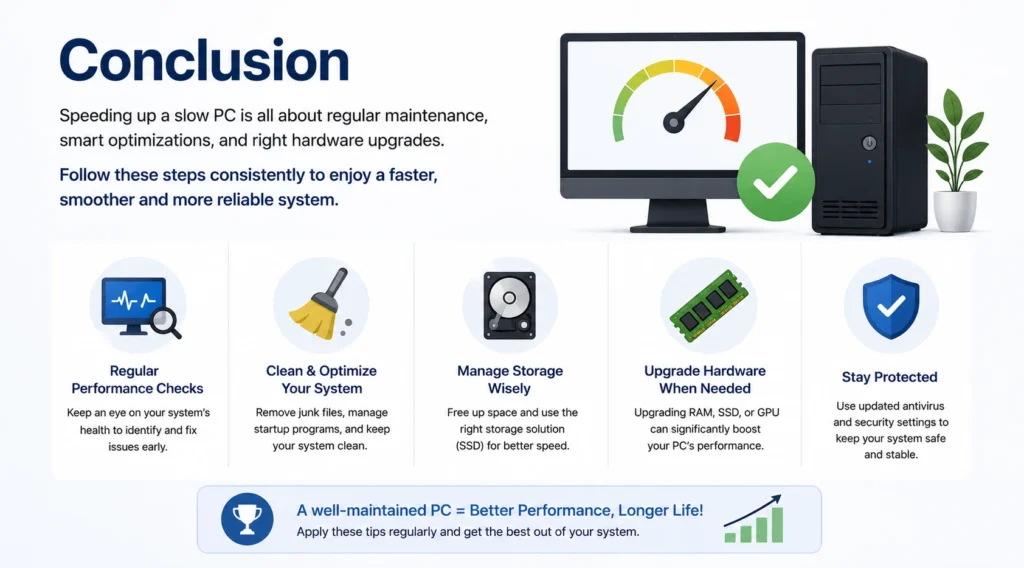
A slow laptop doesn’t necessarily mean you need to replace it right away. In many cases, a few simple changes like clearing storage, managing startup apps, updating software, or upgrading hardware can make a noticeable difference. Start with the quick fixes first, then move to bigger upgrades if needed. With regular maintenance, your laptop can stay fast, responsive, and reliable for much longer.
✨ Want bite-sized tech wisdom? Follow Tech Baaz.